Pastedown: Making Alt Text a Natural Part of Content Creation
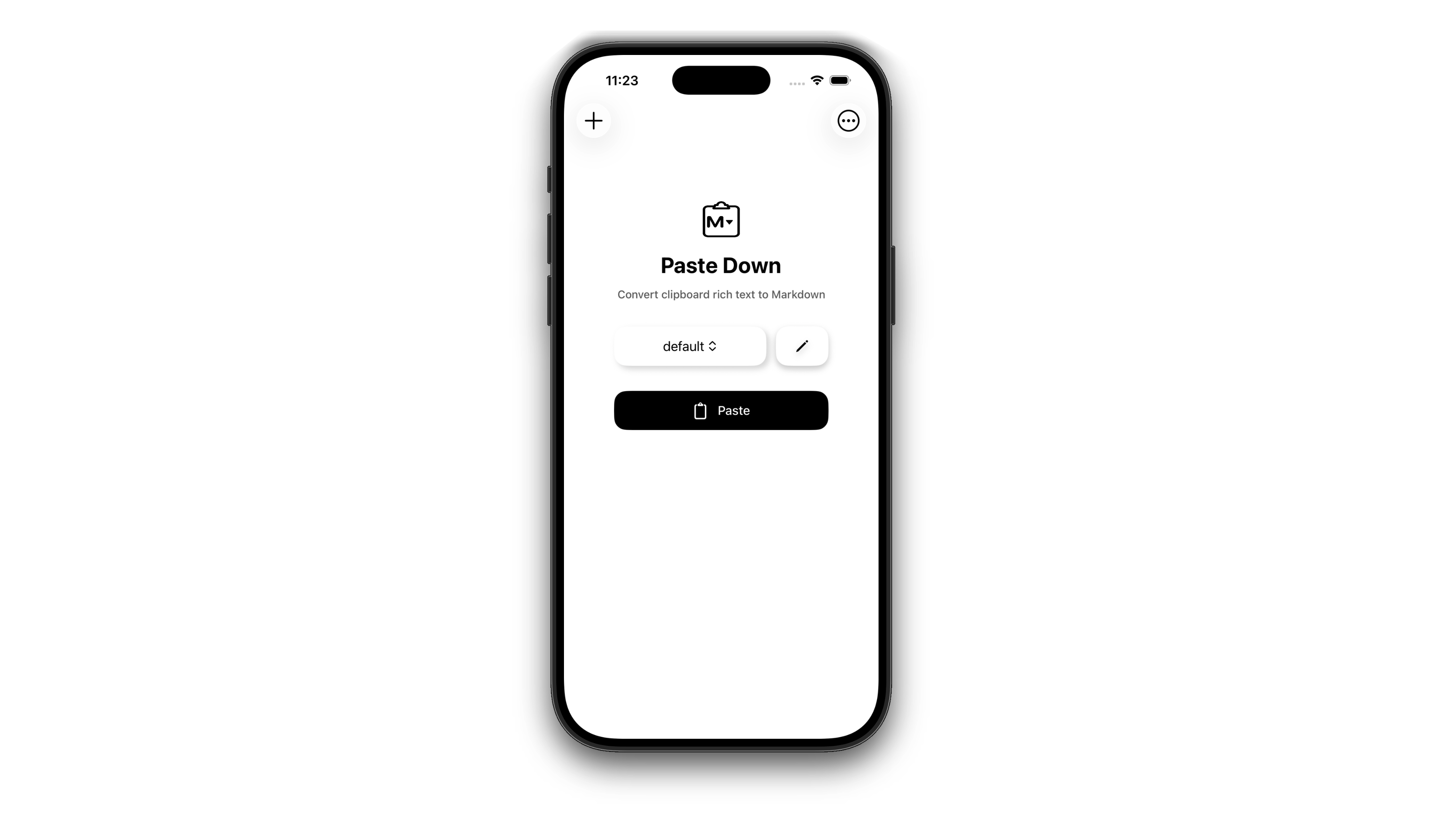
An iOS app that helps creators fulfill their accessibility responsibilities by seamlessly generating alt text for images during the Markdown conversion process.
Project role
Developer & Designer
Key skills
iOS development
Swift
Accessibility
AI integration
UI design
Timeframe
Jun 2025 - Present
The Invisible Problem
Alt text is one of the most neglected aspects of web content. For screen reader users, an image without alt text is essentially invisible—or worse, read aloud as a meaningless filename like “IMG_4392.png.” Yet most content creators skip it, not out of malice, but because the friction is just high enough to make it easy to forget.
As someone who works on accessibility, I feel bad about this situation, but I also have to admit sometimes I skip alt text. Why?
Writing in Apple Notes and publishing to my personal blog meant converting rich text to Markdown every time. That process was already tedious: save each image to a folder, name it properly, insert the Markdown syntax, make sure the path is correct… By the time I got to alt text, it felt like an afterthought. Something I’d “get to later” but rarely did.
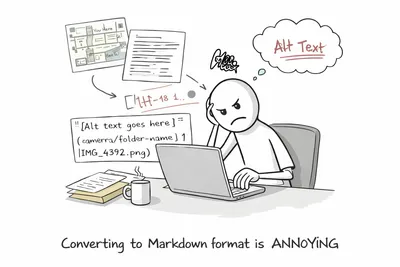
Me everytime dealing with formatting
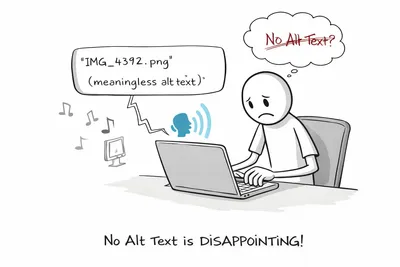
Missing or meaningless alt text might be troublesome
Editing is easier than creating from scratch
Then I realized: why not solve all these problems at once?
What if I could just copy and paste my content, and get a ready-to-go Markdown file—complete with tables, properly named image files, correct syntax, and automatically generated alt text?
Alt text generation could be seamlessly integrated into a workflow creators were already doing. No extra steps, no guilt—just copy and paste.
The solution wasn’t to guilt creators into writing alt text. It was to make alt text appear automatically*, giving them a starting point to review and refine rather than a blank field to ignore.
Even an imperfect AI description prompts creators to engage with accessibility. For example, they might think, “Actually, this shows X, not Y” and make the edit. That’s infinitely better than an empty field. AI can also catch details sighted creators overlook, surfacing context that seems obvious visually but is crucial for those who can’t see the image.


Copy from Apple Notes → Paste in Pastedown → Get Markdown with alt text already filled in

Demo on phone: rich text with images and tables → formatted Markdown with alt text
Why Clipboard, Not Database?
iOS doesn’t allow apps to access Apple Notes’ data directly. Many developers would see this as a limitation to work around. I saw it as a feature.
By reading from the clipboard instead of a specific app’s database, Pastedown becomes platform-agnostic. Today I write in Apple Notes; tomorrow I might switch to Bear, Notion, or something new. The app doesn’t care—it works with any rich text source.
This also explains why I didn’t just build a mobile backend for my blog. I might run multiple sites on different frameworks. Not every project needs a CMS, especially in early stages. A clipboard-based tool gives me flexibility to adapt without rebuilding my publishing workflow from scratch.
Key Features
AI Alt Text Generation
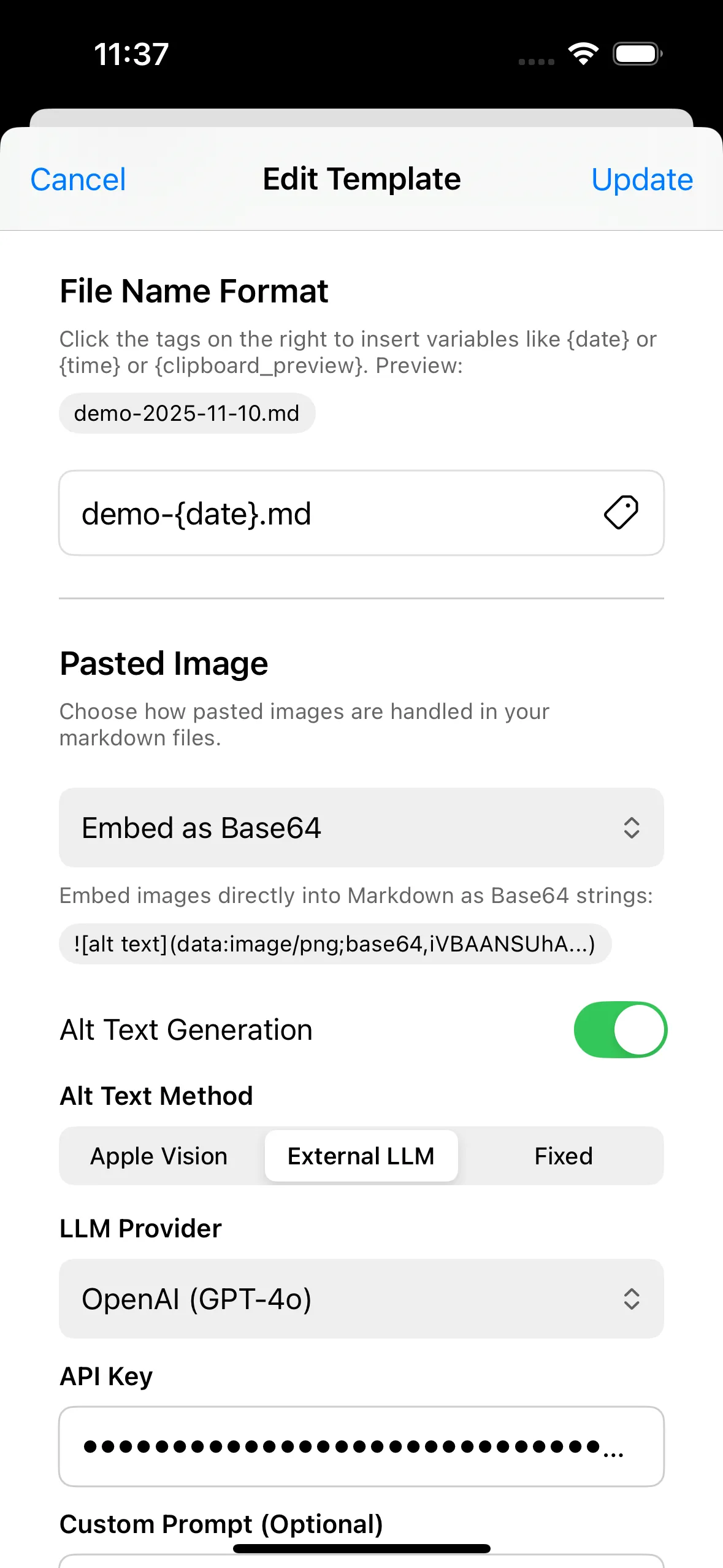
Three options to match different needs and privacy preferences:
- Apple Vision (default): On-device analysis using iOS’s built-in Vision framework. Free, private, works offline.
- External API: Connect your own OpenAI or Claude API key for more sophisticated descriptions.
- Custom text: Set a fixed value for consistent styling.
Configure image handling and alt text generation settings
Template System
For creators publishing to static site generators (Astro, Hugo, Jekyll), the template system handles the repetitive configuration:
Configure once, reuse across all your posts
Dynamic variables like {date}, {title}, or {clipboard_preview} let you define patterns for filenames and image paths. Flexible front matter supports multiple data types—text, dates, tags, lists—with options to comment out or indent fields.
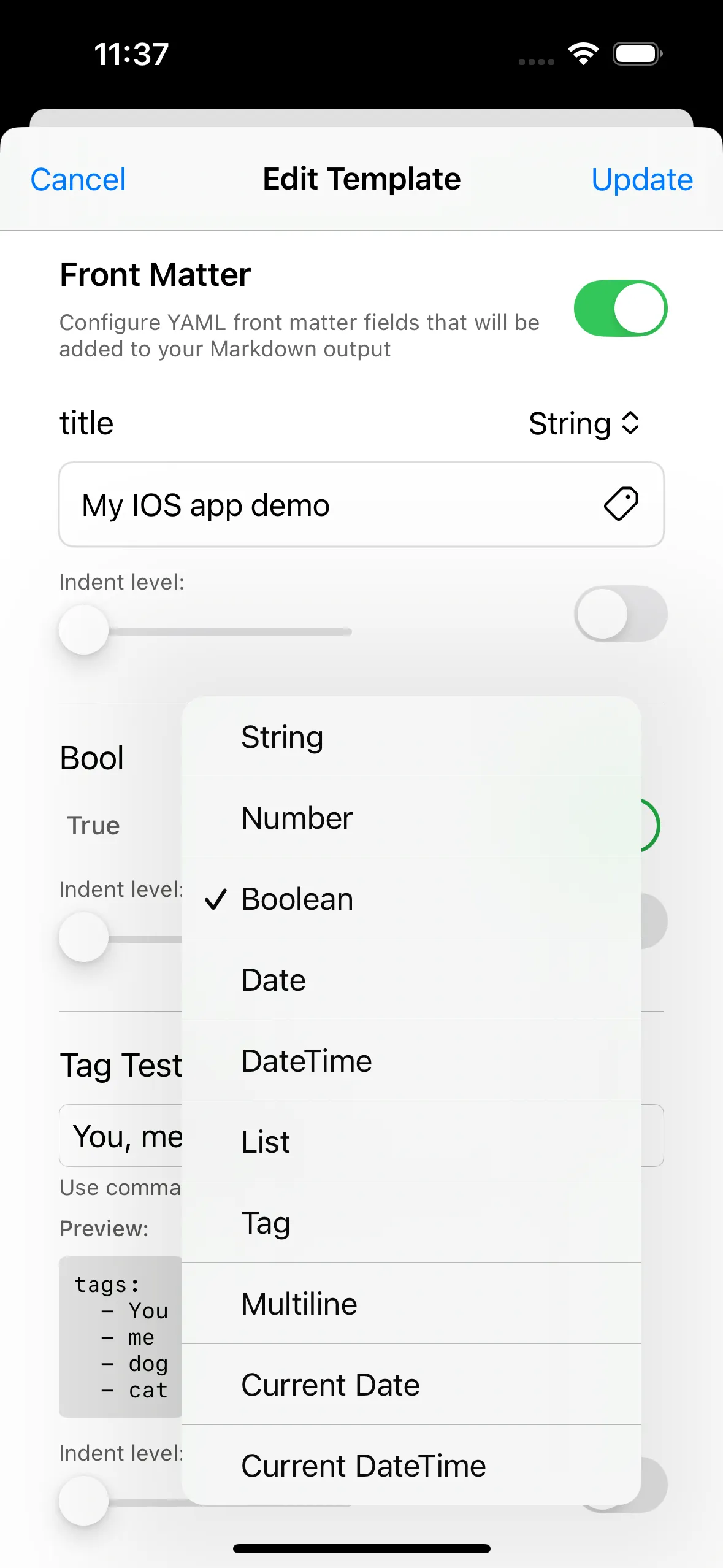
Create different templates for different sites or content types
Add custom front matter fields with multiple data types
Manage multiple templates for different publishing workflows
The template system exists because I might publish to different sites with different requirements. One blog might need publishDate in ISO format; another might use date as a simple string. Rather than hardcoding any single format, I built the flexibility in from the start.
Smart Table Conversion
Apple Notes tables are notoriously difficult to parse—the standard APIs don’t expose cell positions. Pastedown uses a two-phase approach: extracting structure from raw RTF data, then mapping formatted content to the correct cells.
Technical Deep Dive: Parsing Challenges
The Encoding Trap
The app worked perfectly with plain text but failed mysteriously when content included images. The culprit: character encoding. RTF documents with embedded images may use Windows-1252 or Mac OS Roman instead of ASCII/UTF-8.
The fix was implementing a fallback chain that tries multiple encodings and validates the result:
let encodings: [String.Encoding] = [
    .ascii, .utf8, .windowsCP1252, .macOSRoman, .isoLatin1
]

for encoding in encodings {
    if let decoded = String(data: rtfData, encoding: encoding),
       decoded.hasPrefix("{\\rtf") {
        return decoded
    }
}
The Last-Item List Bug
Apple Notes renders the last item in a bullet list differently depending on whether there’s content after it—producing \t•\tPoint1 with trailing content, but \t•\t\t•\tPoint1 without. This happens regardless of nesting level. The fix required pattern matching to detect and normalize this edge case.
Lesson: Apple’s rich text formats optimize for display, not programmatic access. Edge cases like “last item” or “single item” scenarios need explicit testing.
Design & User Experience
The app supports both light and dark modes, with a clean, intuitive interface that gets out of your way.

Seamless light and dark mode support
Architecture
The app follows MVVM with separation between data models, business logic, and UI. The core RichTextProcessor handles conversion from NSAttributedString to Markdown, delegating specialized parsing to utility modules for tables, lists, and images.
Project Structure
pastedown/
├── Models/           # Template, FrontMatterField, ImageHandling
├── ViewModels/       # RichTextProcessor, ClipboardService, ImageAnalyzer
├── Views/            # SwiftUI components
├── Utilities/        # TableUtilities, ListUtilities, MarkdownUtilities
└── DesignSystem/ # Reusable UI componentsReflection
At the beginning of this project, I had only a vague idea and dove straight into coding. I soon found my progress was slow, spending too much time on visual details and UI design. I went back and forth on how to make the interface intuitive—especially for the font settings, which involved many options like date format, variable insertion, and indent levels that needed to work together coherently. This taught me that starting with low-fidelity prototypes, like paper sketches, before coding would be much more efficient.
What’s Next
- App Store release: Currently in TestFlight, preparing for public launch
- Shortcuts integration: Enable automation with iOS Shortcuts for one-tap conversion
- macOS companion: Bring the same workflow to desktop with batch processing support